First sent
Quotes
- 1First reminderday + time
- 2Second reminderday + time
- 3Expiration warningday + time
The expiration warning is scheduled relative to the quote validity date.
Configure SMS and email reminders for eligible open quotes and invoices, then review every sent, skipped, failed, or cancelled attempt in one document history.
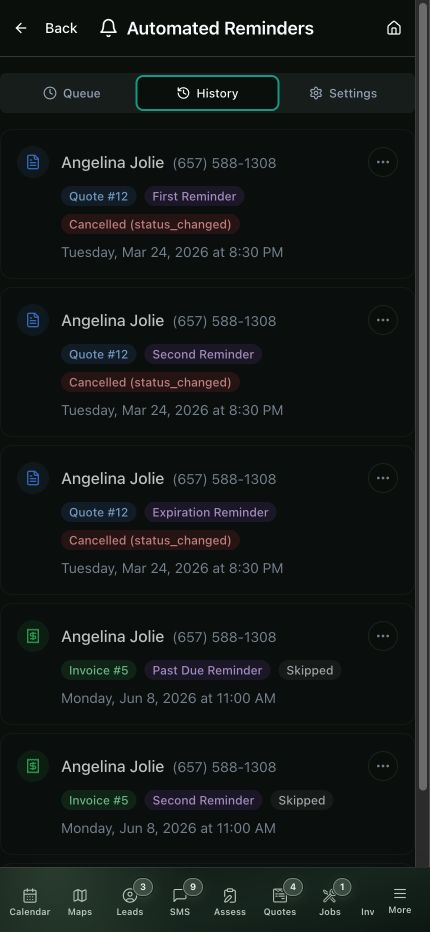
Current reminder history
Review the reminder type, document, timestamp, and exact reason each sequence stopped instead of trusting a silent timer.
01 / Eligibility
Scheduling begins from the first send, but only after the company settings, document state, channel template, and client contact information support a real reminder.
The company reminder engine and that document sequence are both turned on.
The quote or invoice has been sent, creating the starting point for its schedule.
The document is still eligible: the quote needs a decision or the invoice still has a balance.
A configured SMS or email template has matching client contact information.
02 / Schedule
Each quote or invoice can use the configured sequence, turn reminders off, or save a custom timing override without rewriting the company-wide schedule.
First sent
The expiration warning is scheduled relative to the quote validity date.
First sent
The past-due reminder is scheduled relative to the invoice due date.
Use the left and right arrow keys to change screenshots. On a touch screen, swipe horizontally. Activate a screenshot to open its expanded view.
Set company defaults for first, second, expiration, and past-due reminders, including the day offset and delivery time.
1 / 1
Swipe to view
1 / 1
03 / Status-aware stop
Quote reminders stop after approval, decline, expiration, archival, or cancellation. Invoice reminders stop after payment, partial payment, voiding, archival, cancellation, or when the remaining balance reaches zero.
Turning reminders off for one record also cancels its pending queue without changing the company defaults.
Decision reached or document closed
Payment state or balance no longer qualifies
One document is excluded from the sequence
04 / Audit history
The queue and history preserve the document, reminder type, scheduled or processed time, channels used, and the reason an attempt was skipped, failed, or cancelled.
Use the left and right arrow keys to change screenshots. On a touch screen, swipe horizontally. Activate a screenshot to open its expanded view.
The current history identifies the document, reminder type, schedule, result, and exact cancellation or skip reason.
1 / 1
Swipe to view
1 / 1
Tell us how you work today. We’ll walk through the calls, fieldwork, and reports that matter to your team.
0130-minute personalized walkthrough
02See pricing for your team size
03No obligations or pressure