Know who is on site— and for how long.
See enabled staff phones and vehicle trackers together, measure job-site time, review routes and stops, and keep the location history behind each visit.
- Phone + hardware GPS
- Job-site entry and exit
- Reviewable route history
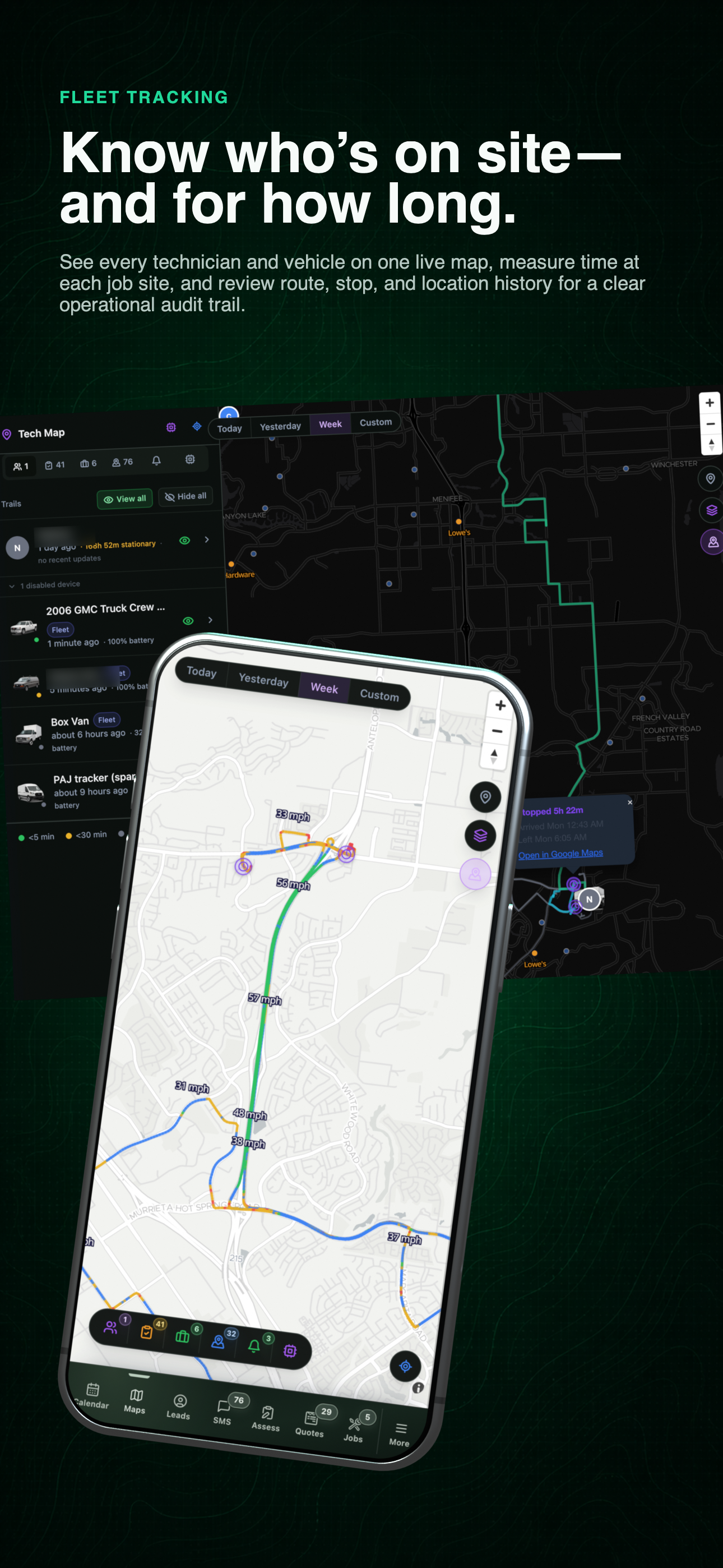
Fleet tracking overview
One operational view for staff phones, installed vehicle hardware, portable trackers, routes, and time on site.
01 / Tracking sources
Track the equipment your operation actually uses.
A technician's phone, a permanently installed vehicle tracker, and a portable unit can all contribute to the same fleet view. The office does not have to reconcile three disconnected maps.
- 01
Staff phones
Use the app location that an employee has enabled to show current work location, recent travel, and job-site activity.
- 02
Hard-wired trackers
Keep an installed vehicle tracker on the same operating map as the people and jobs it supports.
- 03
Portable magnetic trackers
Move battery-powered hardware between vehicles without creating a separate tracking workflow.
02 / Live map
Start with the live picture. Open the history when it matters.
Move from the person or vehicle list into the route, stop, and speed evidence behind the current location.
Use the left and right arrow keys to change screenshots. On a touch screen, swipe horizontally. Activate a screenshot to open its expanded view.
See the shared operations map together with the mobile route and field context used away from the office.
1 / 1
Swipe to view
1 / 1
03 / Job-site time
Let the job address become the time marker.
Active leads, assessments, and jobs provide job-site zones. When an enabled person or vehicle crosses one, the visit produces entry and exit events that the office can review later.
- 01
Entered
The person or vehicle crosses into the job-site zone.
- 02
On site
Arrival, departure, and elapsed time become part of the job history.
- 03
Exited
The office can review the completed visit with its supporting route context.
04 / Operational answers
Turn location data into answers the office can defend.
- 01Where is the crew now?
- Read the current position of enabled staff phones and connected vehicle trackers from one map.
- 02What happened before arrival?
- Review the route, stops, and recorded speed points instead of relying on the latest pin alone.
- 03How long was the job-site visit?
- Use the paired entry and exit events as an auditable time-on-site record.
- 04Who used a shared vehicle?
- Review the suggested driver association and explicitly confirm it before the person and vehicle are linked.
Let’s walk through a job.
Tell us how you work today. We’ll walk through the calls, fieldwork, and reports that matter to your team.
0130-minute personalized walkthrough
02See pricing for your team size
03No obligations or pressure