Document restoration work from field to scope.
Guide trained technicians through configured field steps, record readings and equipment, hand the documented scope to an estimator, and produce a consistent restoration record.
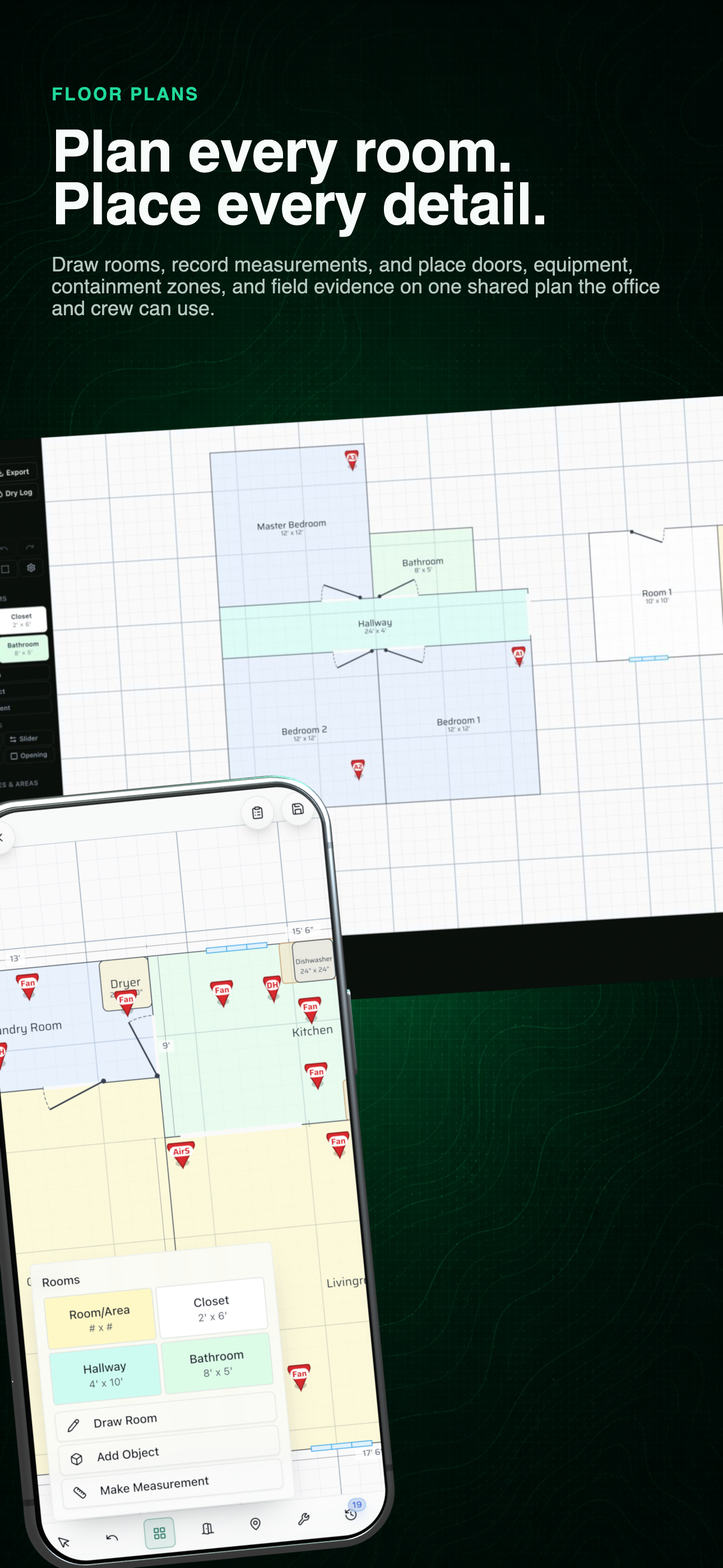
Connected restoration plan
See the shared floor-plan workflow first, then inspect field scope, room evidence, drying history, and report output below.
Field record before estimate
Capture what happened, then let the right person review it.
The software organizes restoration documentation. It does not replace technician training, licensing, field verification, or estimator judgment.
- 01
Guide the assigned field work
Use configured tick sheets to show trained technicians which rooms, materials, equipment, photos, and readings the job requires them to document.
- 02
Keep evidence attached to the plan
Connect rooms, moisture areas, equipment, measurements, and field photos to the same floor-plan and job record.
- 03
Carry documentation to an estimator
Give an estimator the recorded scope so they can review the job and prepare line-item pricing. Training, licensing, and professional judgment remain with the team.
- 04
Build a reviewable drying history
Organize recorded visits, selected historical outdoor weather, equipment history, charts, and technician-reviewed notes into the final restoration record.
01 / Field scope
Give the assigned technician a visible record to complete.
Configured room and work items keep required quantities, equipment, photos, readings, and notes in front of the trained technician. The office and estimator can review the completed record before it becomes pricing or a deliverable.
Use the left and right arrow keys to change screenshots. On a touch screen, swipe horizontally. Activate a screenshot to open its expanded view.
Set up each room with dimensions and calculated quantities before work, photos, and readings are recorded.
1 / 1
Swipe to view
1 / 1
02 / Shared plan
Attach the field evidence to the place where it happened.
Rooms, dimensions, moisture areas, markers, and related scope details stay on the job plan. The desktop view supports preparation and review while the mobile view keeps the plan available in the field.
Use the left and right arrow keys to change screenshots. On a touch screen, swipe horizontally. Activate a screenshot to open its expanded view.
Build and revise room geometry from the same restoration record used in the field.
1 / 2
Swipe to view
1 / 2
03 / Drying history
Turn recorded visits into a reviewable progress record.
Organize entered readings, equipment history, selected historical outdoor weather, charts, and technician-reviewed notes without rebuilding the job in a separate spreadsheet.
Use the left and right arrow keys to change screenshots. On a touch screen, swipe horizontally. Activate a screenshot to open its expanded view.
Keep job dates, moisture areas, equipment duration, and guided reading setup in the same record.
1 / 2
Swipe to view
1 / 2
Let’s walk through a job.
Tell us how you work today. We’ll walk through the calls, fieldwork, and reports that matter to your team.
0130-minute personalized walkthrough
02See pricing for your team size
03No obligations or pressure