Keep the Conversation Connected to the Work
Text from one business thread, send the right document in a tap, and see approvals or payments without chasing a separate status.
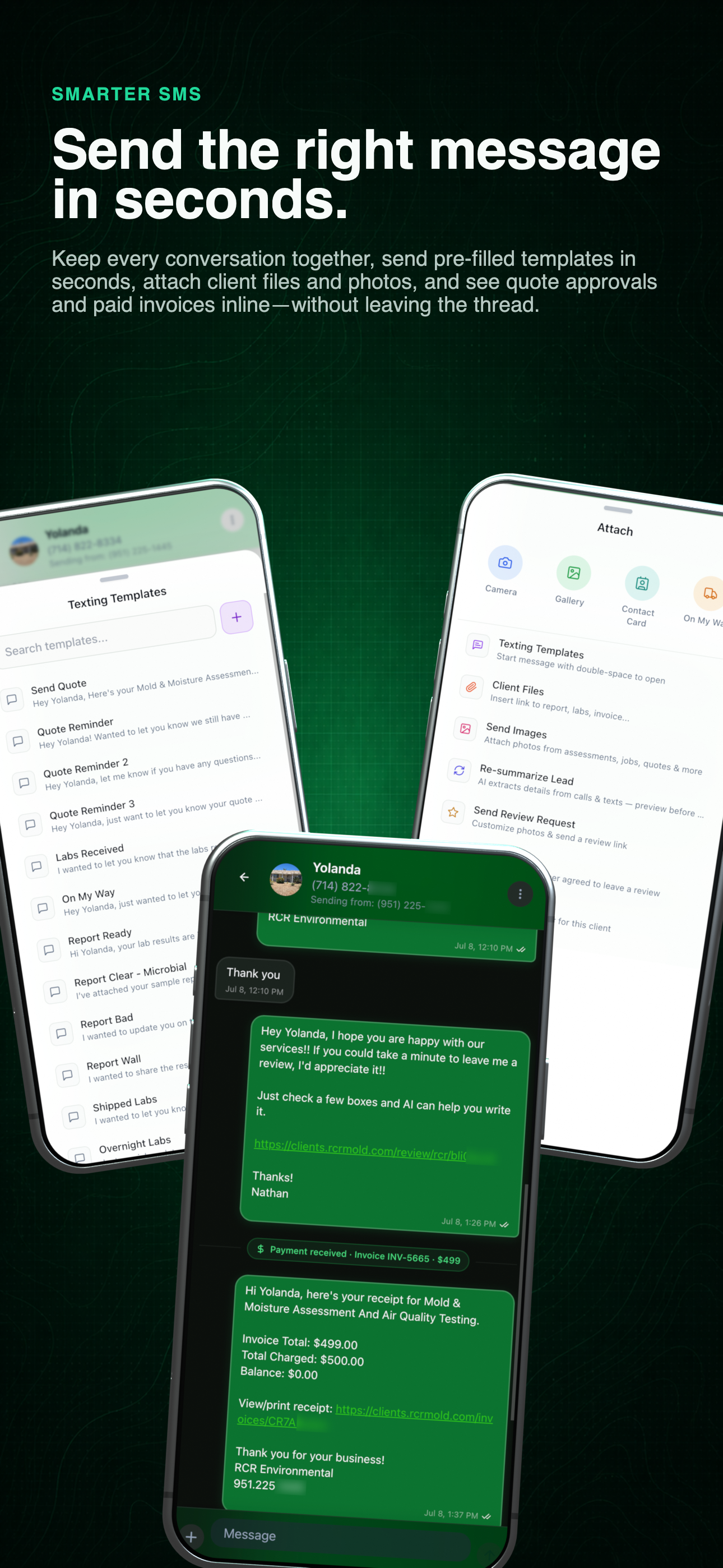
Complete SMS workflow
See the connected messaging workflow first, then inspect client threads, document links, templates, and actions below.
More than a message log
The thread shows what happened next.
Client communication, documents, approvals, and payments stay close enough to act on without changing tools.
- 01
The conversation stays attached
The office and field can see the same client thread instead of splitting replies across personal phones.
- 02
Documents travel as live links
Send the quote, invoice, lab result, or report from the record the conversation already belongs to.
- 03
The outcome comes back to the thread
Quote approvals and paid invoice status appear in the workflow, so the next reply starts with current information.
Use the left and right arrow keys to change screenshots. On a touch screen, swipe horizontally. Activate a screenshot to open its expanded view.
A current generic thread carries the client from lab receipt through processing, payment confirmation, and online report delivery.
1 / 2
Scroll through the workflow
2 views
Mobile workflow
01 / 02
Mobile workflow
02 / 02
Tap any view to expand it, then use the controls or swipe between the full-screen screens.
02 / Send
The useful shortcut is the one tied to the client record.
Templates save time, but the real advantage is carrying the right document and next action into the thread without rebuilding either one.
- 01
Choose the message for the moment
Keep quote, lab, report, appointment, and field-update templates together so the next message starts with the right intent.
- 02
Fill the record-specific details
Use the connected client and document record to insert supported names, links, and context before the team reviews the message.
- 03
Send the next action with the reply
Attach the relevant client file or start a reminder, review, or appointment workflow from the conversation that owns it.
Use the left and right arrow keys to change screenshots. On a touch screen, swipe horizontally. Activate a screenshot to open its expanded view.
Open the current action sheet to insert a template, share a client file, attach field evidence, re-summarize the lead, request a review, set a reminder, or send an on-my-way update.
1 / 1
Swipe to view
1 / 1
Let’s walk through a job.
Tell us how you work today. We’ll walk through the calls, fieldwork, and reports that matter to your team.
0130-minute personalized walkthrough
02See pricing for your team size
03No obligations or pressure