Make the lab result easy to understand.
Move imported lab data into a clear explanation of the property: visual comparisons, plain-language context, responsive client review, and a branded PDF from the same record.
- Import lab data once
- Explain elevated results visually
- Deliver responsive and PDF reports
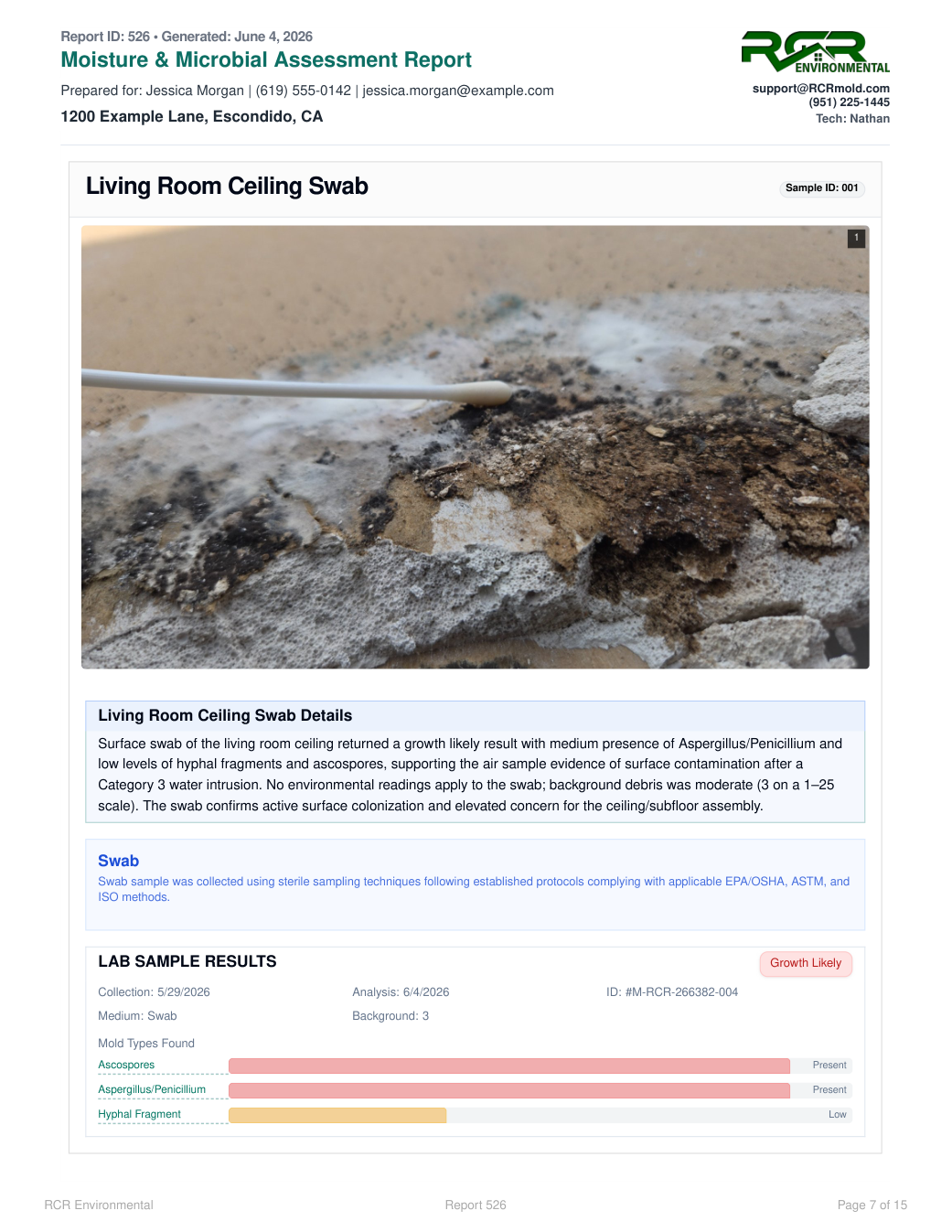
Complete report workflow
Field evidence and sample results on one printed page. Compare the phone and PDF views below.
Import, review, explain, deliver
Reduce re-entry without handing judgment to the software.
The report workflow organizes lab results and drafts client-ready context, while the inspector remains responsible for checking the imported data and the final interpretation.
- 01
Review the imported fields
Reduce re-entry from supported lab PDFs, then inspect and correct sample IDs, locations, analysis values, dates, and other extracted fields before they reach the report.
- 02
Compare findings visually
Place indoor concentrations beside the outdoor control and flag elevated ratios so the inspector can identify which locations need explanation.
- 03
Draft context for inspector review
Use imported findings, available weather context, and the species glossary to draft plain-language report copy. The inspector reviews the interpretation before delivery.
- 04
Keep screen and PDF aligned
Use the same reviewed record for the responsive client view and the branded multi-page document, including supporting certificates and reusable template fields where applicable.
01
COC + lab handoff
02
Import + match
03
Compare every area
04
Explain + deliver
01 / Chain of custody to matched return
Send the COC out. Bring the lab return home.
The laboratory handoff starts inside the assessment. The COC, shipment, returned lab file, sample match, and report status stay connected to the property that produced them.
Prepare. Generate the chain of custody from the assessment and send it directly to the configured laboratory.
Receive. Bring the returned lab PDF into the same assessment instead of leaving it in a separate inbox or download folder.
Match. Match exact sample IDs first, then surface anything unresolved for a person to correct before reporting.
Review. Check the imported counts, locations, control sample, dates, and report status before client delivery.
Use the left and right arrow keys to change screenshots. On a touch screen, swipe horizontally. Activate a screenshot to open its expanded view.
The current assessment keeps the COC, returned lab file, 4/4 sample match, generated report content, and client report in one mobile record.
1 / 1
Scroll through the workflow
1 views
Mobile workflow
01 / 01
Tap any view to expand it, then use the controls or swipe between the full-screen screens.
02 / Complete counts and comparisons
Keep every area, organism, and control value visible.
The import is useful only if the inspector can audit it. Current reports retain the full per-area result and the supplied outdoor control instead of reducing the laboratory return to a pass/fail badge.
Retained for review
01Sample ID and sample type
02Area or control location
03Raw count and concentration
04Collection and analysis context
05Background or debris level
06Indoor-to-outdoor comparison
Use the left and right arrow keys to change screenshots. On a touch screen, swipe horizontally. Activate a screenshot to open its expanded view.
Confirm the analysis method, sample count, control, and finding status before relying on the report narrative.
1 / 2
Scroll through the workflow
2 views
Mobile workflow
01 / 02
Mobile workflow
02 / 02
Tap any view to expand it, then use the controls or swipe between the full-screen screens.
Use the left and right arrow keys to change screenshots. On a touch screen, swipe horizontally. Activate a screenshot to open its expanded view.
The glossary is built from the organisms actually detected and preserves the areas connected to each finding.
1 / 1
Scroll through the workflow
1 views
Mobile workflow
01 / 01
Tap any view to expand it, then use the controls or swipe between the full-screen screens.
03 / Finding-specific glossary
Explain the organisms that were actually found.
The report builds its glossary from detected organisms and tags the areas tied to each one. Clients get relevant context without paging through an unrelated mold encyclopedia.
- Detected organisms only
- Assessment locations preserved
- Direct jump links from findings
- Inspector-reviewed report context
04 / Inspector review and delivery
Automation organizes the evidence. The inspector owns the conclusion.
Review the matched samples, counts, comparisons, area narratives, glossary, and recommendations before publishing. Once approved, the same report can be opened as a responsive client link, sent by SMS or email, and retained as a branded PDF.
The findings, on screen and on paper
Let the report do the explaining.
Real field photos, sample results, and indoor/outdoor comparisons. Let clients read the findings on their phone, or give them a branded PDF to keep.
Explore reports
Real product HTML. Client details and signatures replaced for this preview.
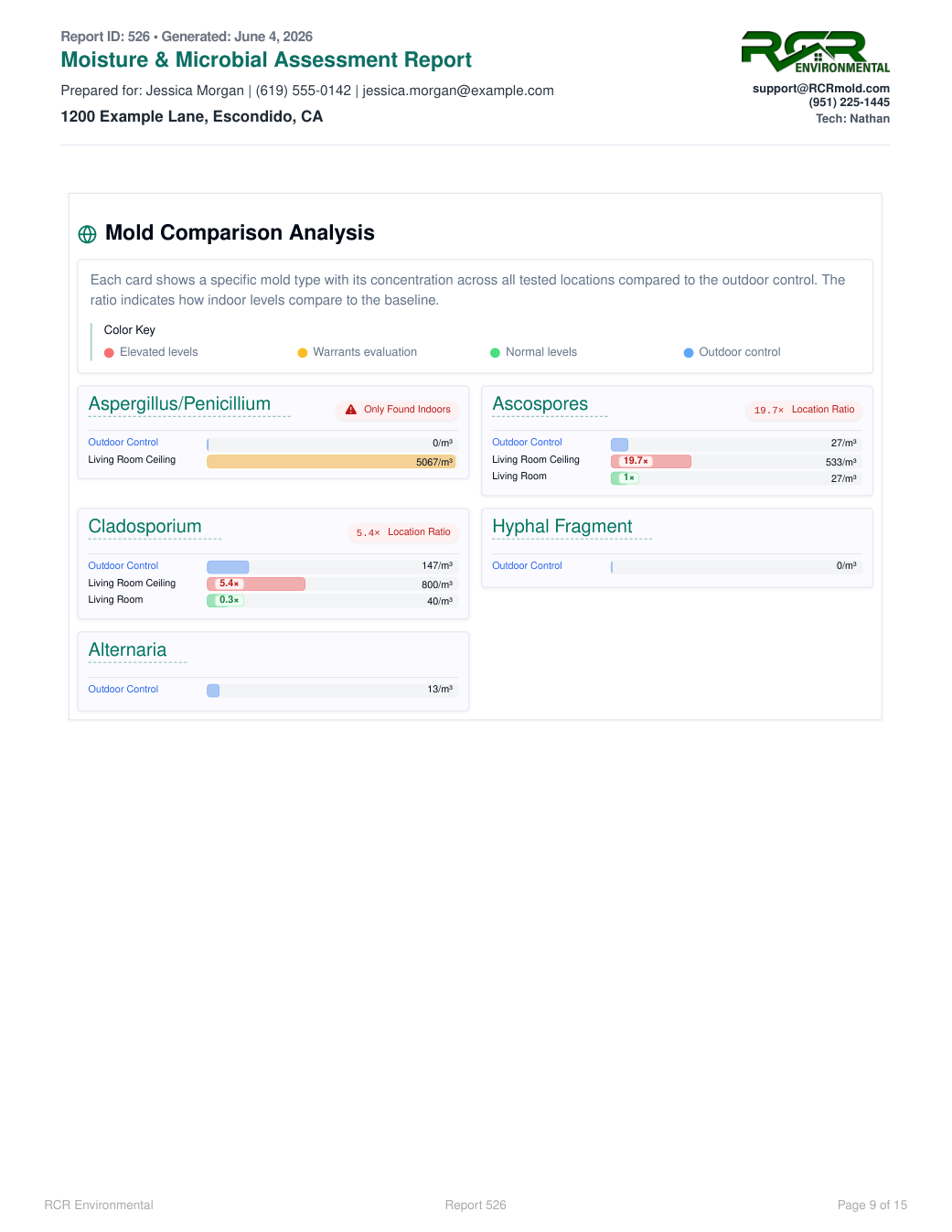
Indoor/outdoor comparison · source page 9
The same comparison in both formats: indoor readings, the outdoor control, and the flagged ratios.
Let’s walk through a job.
Tell us how you work today. We’ll walk through the calls, fieldwork, and reports that matter to your team.
0130-minute personalized walkthrough
02See pricing for your team size
03No obligations or pressure