From approved quote to documented closeout.
Create the job without rebuilding the client record, dispatch the right technician, require field proof, and bring materials and receipts back into one reviewable cost trail.
- Quote-linked handoff
- Required field proof
- Receipt-backed job cost
Use the left and right arrow keys to change screenshots. On a touch screen, swipe horizontally. Activate a screenshot to open its expanded view.
One connected job record carries the scope into field proof, receipts, linked records, and an office-ready cost picture.
1 / 1
Swipe to view
1 / 1
01 · Quote to job
Keep the promise connected to the work.
Create the field record from an approved quote instead of rebuilding the client, scope, and source documents in a second system.
- 01
Create from the quote
The job keeps the quote link instead of starting as an unrelated record.
- 02
Carry the client forward
Address, contact, schedule context, and connected records remain available to the office.
- 03
Track the next state
Pending, scheduled, assigned, in-progress, and completed states keep the handoff visible.
Use the left and right arrow keys to change screenshots. On a touch screen, swipe horizontally. Activate a screenshot to open its expanded view.
The current job list keeps assignment, schedule, property, invoice, receipts, and checklist progress in one operational row.
1 / 2
Scroll through the workflow
2 views
Mobile workflow
01 / 02
Mobile workflow
02 / 02
Tap any view to expand it, then use the controls or swipe between the full-screen screens.
02 · Assignment and access
Give the technician the job—not the books.
Assign one or more technicians, send a direct link to the field record, and decide whether each person can see client financials. The work remains actionable even when pricing is hidden.
Field access
Work stays available
- Schedule, address, scope, and job notes
- Checklist completion and required photos
- Receipt photo and purchase entry
Office control
Financials can stay private
- Quote and invoice pricing
- Internal cost and estimated profit
- True lead-acquisition and adjustments
Financial visibility is chosen per assigned technician. Hiding it does not remove the field tools needed to document the job or submit a receipt.
Use the left and right arrow keys to change screenshots. On a touch screen, swipe horizontally. Activate a screenshot to open its expanded view.
The field record keeps the current visit, assigned technician, property, client, and work details together.
1 / 1
Swipe to view
1 / 1
03 · Required field proof
Turn the scope into steps the field can prove.
Reusable presets provide the starting point. Each job can still have its own ordered steps, notes, and photo requirements.
- 01
Start with a reusable preset
Load the checklist that matches the job type, then add or remove steps for this specific site.
- 02
Require proof where it matters
Mark an item photo-required so completion remains visibly incomplete until the field evidence is attached.
- 03
Nudge the assigned technician
Send a reminder that deep-links directly to the exact checklist item inside the job.
Use the left and right arrow keys to change screenshots. On a touch screen, swipe horizontally. Activate a screenshot to open its expanded view.
Ordered field tasks can require a camera or gallery photo before the technician marks the work complete.
1 / 3
Scroll through the workflow
3 views
Mobile workflow
01 / 03
Mobile workflow
02 / 03
Mobile workflow
03 / 03
Tap any view to expand it, then use the controls or swipe between the full-screen screens.
Receipt to job cost
See what the job actually cost.
The valuable screen is not the receipt alone. It is the trail from purchased materials through reviewed extraction to the job total and linked records.
- 01
Capture the purchase where it happened
The technician adds the receipt to the job instead of handing the office a paper trail to reconstruct later.
- 02
Review the extracted receipt
AI-assisted OCR can suggest the merchant, items, subtotal, tax, and total; the team confirms the result before it becomes job cost.
- 03
Connect cost to the rest of the work
See materials, labor, acquisition cost, estimated profit, and the linked assessment, quote, and invoice behind the job total.
Use the left and right arrow keys to change screenshots. On a touch screen, swipe horizontally. Activate a screenshot to open its expanded view.
Keep the required supplies and quantities beside the job so field usage is not reconstructed later.
1 / 2
Scroll through the workflow
2 views
Mobile workflow
01 / 02
Mobile workflow
02 / 02
Tap any view to expand it, then use the controls or swipe between the full-screen screens.
Live fleet operations
One map for every person, vehicle, and route in motion.
Combine phone GPS with installed and portable vehicle trackers, then move from the live position to the trip and job-site details behind it.
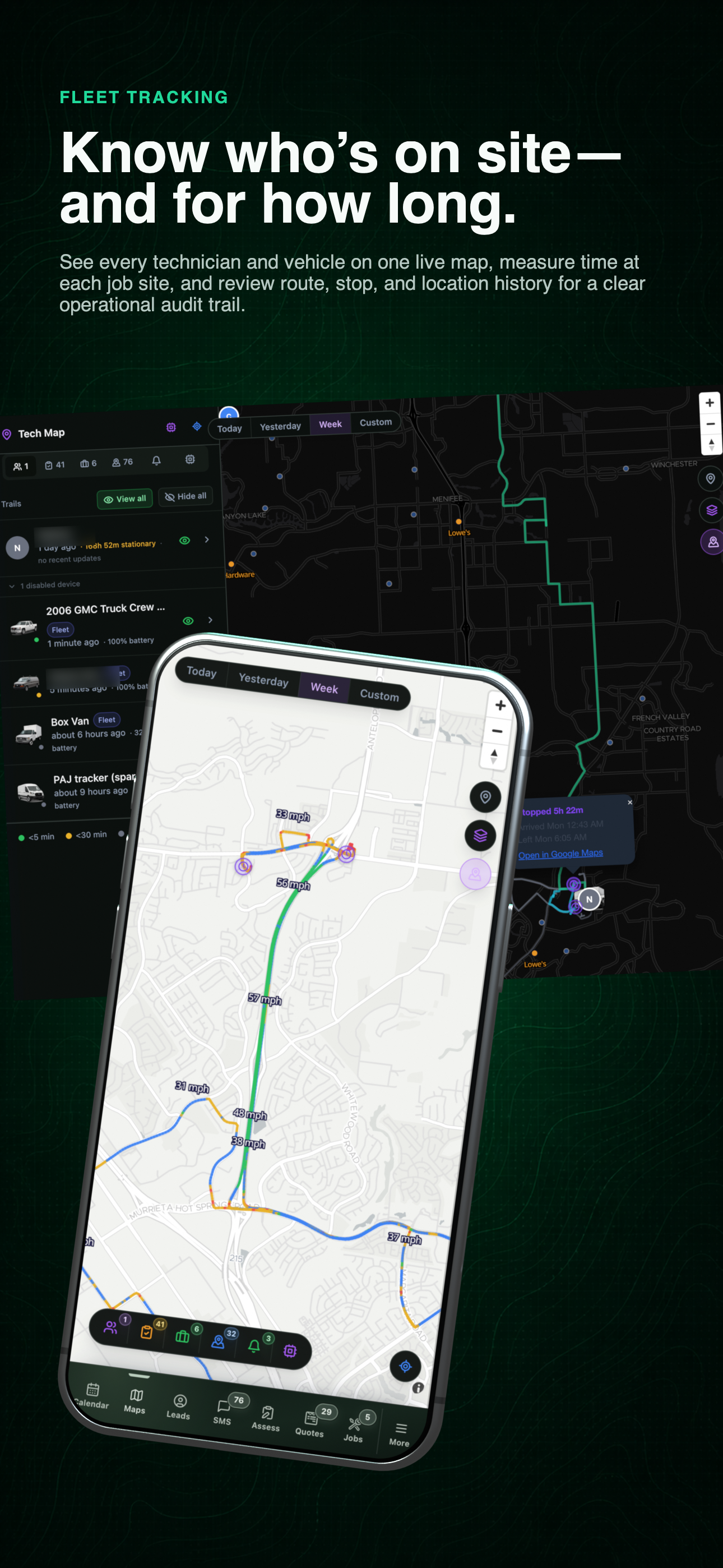
Connected fleet workflow
The current approved card keeps the shared map, mobile route context, and field view together without exposing an employee’s live location.
- 01
Track the equipment you actually use
Bring staff phone GPS, installed hard-wired trackers, and portable magnetic trackers into the same live map.
- 02
Read the route, not just the last pin
Review recent route history with recorded speeds and stops when the office needs context on a vehicle's movement.
- 03
Put real timestamps around the job
See timestamped job-site entries and exits, along with the resulting time on site.
- 04
Keep shared-vehicle attribution accountable
A likely driver can be inferred for a shared vehicle, but the association is only made after explicit confirmation.
Let’s walk through a job.
Tell us how you work today. We’ll walk through the calls, fieldwork, and reports that matter to your team.
0130-minute personalized walkthrough
02See pricing for your team size
03No obligations or pressure