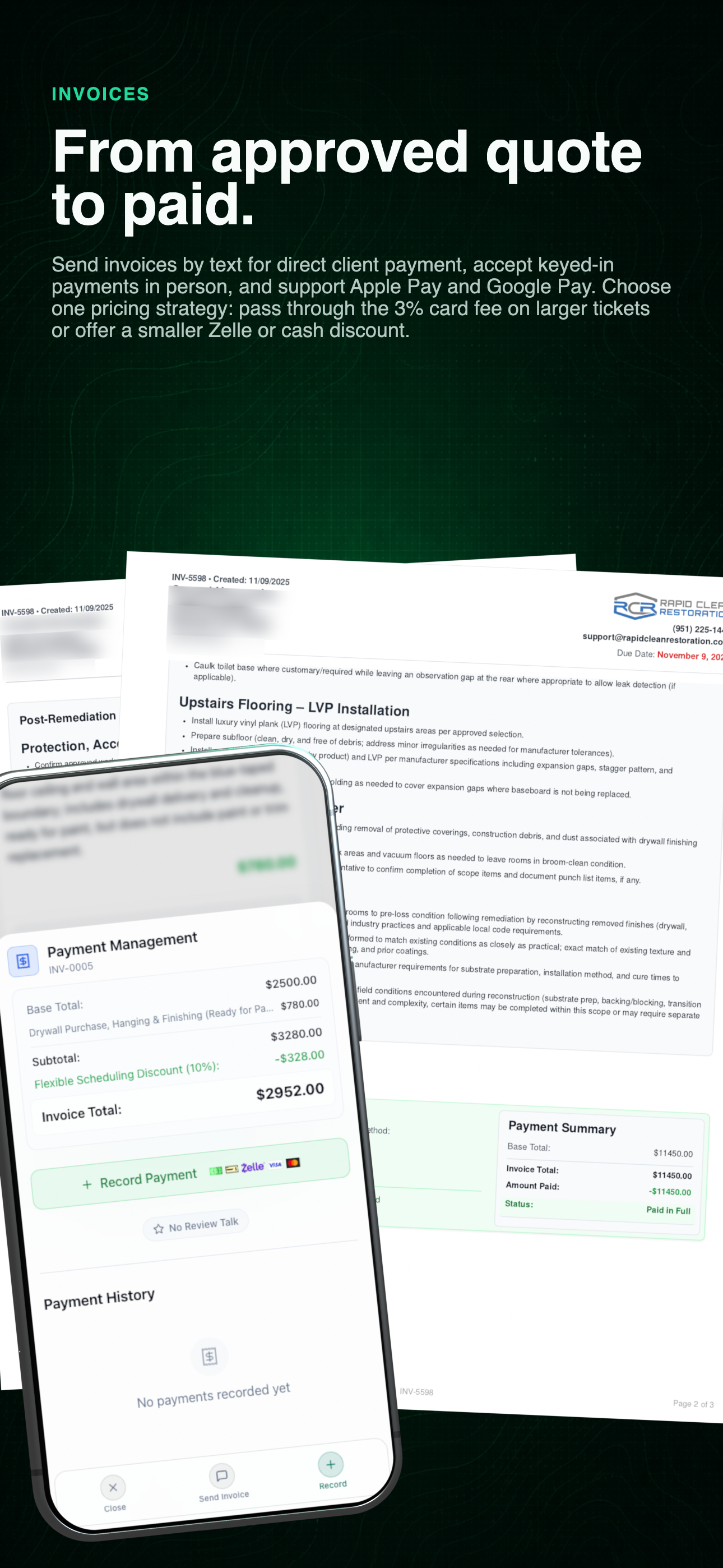
Turn detailed invoices into permanent paid proof.

Send the invoice by text, collect online or in person, keep cash, check, Zelle, ACH, and card activity connected, and preserve the paid document with its client history.

Invoice and payment workflow combining the client payment experience with current office records

Invoice-to-payment workflow

See the client payment experience and connected office record together before drilling into methods, fees, discounts, and ledger details.

The complete invoice lifecycle

Follow the invoice from delivery and collection to the detailed client document, permanent payment record, and audit history.

  1. 01Send
  2. 02Collect
  3. 03Policy
  4. 04Document
  5. 05Prove

01 / Send and track

Know which invoices are waiting and which are paid.

Start from an approved quote or a reviewed call, carry the scope and quoted price into the invoice, and deliver it by SMS or email. Sent and paid records remain distinct from the phone, with discounts, fees, reminders, client views, and message activity attached to the same billing record.

Use the left and right arrow keys to change screenshots. On a touch screen, swipe horizontally. Activate a screenshot to open its expanded view.

A current generic invoice list keeps paid and outstanding work, tips, fees, discounts, reminders, views, and client messages readable at a glance.

Swipe to view

1 / 1

Use the left and right arrow keys to change screenshots. On a touch screen, swipe horizontally. Activate a screenshot to open its expanded view.

Scroll through the workflow

2 views

Mobile workflow

01 / 02

The invoice can begin with the quoted-on-call price and reviewed call summary, then retain the complete work scope and service details.

Mobile workflow

02 / 02

Set the base total, deposits, discounts, due date, payment terms, and reminder schedule without leaving the invoice.

Tap any view to expand it, then use the controls or swipe between the full-screen screens.

Use the left and right arrow keys to change screenshots. On a touch screen, swipe horizontally. Activate a screenshot to open its expanded view.

The client sees the actual total for every enabled method before paying—including cash or Zelle, bank account, card and wallet, and buy now pay later.

Swipe to view

1 / 1

02 / Collect

Keep the balance, collection action, and history together.

The payment page shows the base total, selected services, discount, tip, fee, and final amount before the client commits. Each company can offer the collection methods it supports, while the office keeps payment management and history connected to the invoice.

Remote
Send the invoice by SMS or email. The client can choose card, Apple Pay or Google Pay, bank account, or supported buy-now-pay-later options from the responsive invoice.
In person
Use Tap to Pay on a supported iPhone or Android device, or record an authorized payment while the invoice is open in the field.
Offline
Keep cash, check, and Zelle payments attached to the same invoice and receipt history.

Payment policy

Choose one clear treatment for each document.

A quote or invoice uses one pricing mode at a time: encourage lower-cost payment methods, or disclose supported processing costs. The client sees the choice before paying.

Use the left and right arrow keys to change screenshots. On a touch screen, swipe horizontally. Activate a screenshot to open its expanded view.

Scroll through the workflow

2 views

Mobile workflow

01 / 02

In the complete phone layout, the client-facing base total and every lower-cost payment discount remain visible together.

Mobile workflow

02 / 02

The alternate phone view keeps the same base total while disclosing the configured ACH, card, and financing costs.

Tap any view to expand it, then use the controls or swipe between the full-screen screens.

Use the arrow keys to compare the two payment pricing modes.

Pricing treatment is configured on the quote or invoice. It is not both modes at once.

Discount lower-cost methods

Encourage cash, check, Zelle, or bank payment.

Use the discount-based mode when you prefer to absorb standard card costs and give clients a reason to choose a lower-cost method.

The client sees

The applicable discount and adjusted amount before payment.

The ledger keeps

The original service balance, payment-method adjustment, and collected amount as separate ledger details.

  1. 1Cash, check, and Zelle can be recorded by authorized users
  2. 2Supported bank payment can show its adjusted total
  3. 3Card payment remains available without the cash-method discount

Discount lower-cost methods selected. Use the discount-based mode when you prefer to absorb standard card costs and give clients a reason to choose a lower-cost method.

04 / Detailed document

Deliver the complete scope—not just a balance due.

The client-facing invoice preserves the detailed work scope, selected services, job images, dates, property information, and terms in a responsive document. When a client approves a quote, that same scope can become the invoice instead of being recreated as a separate billing document.

Use the left and right arrow keys to change screenshots. On a touch screen, swipe horizontally. Activate a screenshot to open its expanded view.

The responsive client invoice preserves the detailed scope, services, dates, and property context instead of reducing the request to a balance due.

Swipe to view

1 / 1

05 / Proof

Preserve what was paid and the visit that paid it.

Keep the permanent paid document beside the client engagement history instead of relying on a status badge alone.

Use the left and right arrow keys to change screenshots. On a touch screen, swipe horizontally. Activate a screenshot to open its expanded view.

Scroll through the workflow

2 views

Mobile workflow

01 / 02

Payment management keeps the base total, amount paid, status, method, date, note, detail controls, and receipt action in one audit trail.

Mobile workflow

02 / 02

The client-facing invoice retains an unmistakable paid record with the method, date, amount, and paid-in-full summary.

Tap any view to expand it, then use the controls or swipe between the full-screen screens.

What stays recorded

  • Permanent paid document snapshot
  • Payment method, date, and amount received
  • Client view and payment history
  • Location, provider, browser, and device context when available

See your workflow, connected.

Bring the way you work today. We’ll show you what connects, what can be automated, and where the platform removes duplicate work.

0130-minute personalized walkthrough

02See pricing for your team size

03No obligations or pressure

1 — About you2 — Your focus
What would you like to explore?

We'll tailor the next step to what you actually need.

What best describes your business?