Conversation
Recording playback and the complete transcript
Preserve attribution, route the caller, record when enabled and permitted, extract the details, and keep tracked follow-up attached to the same client history.
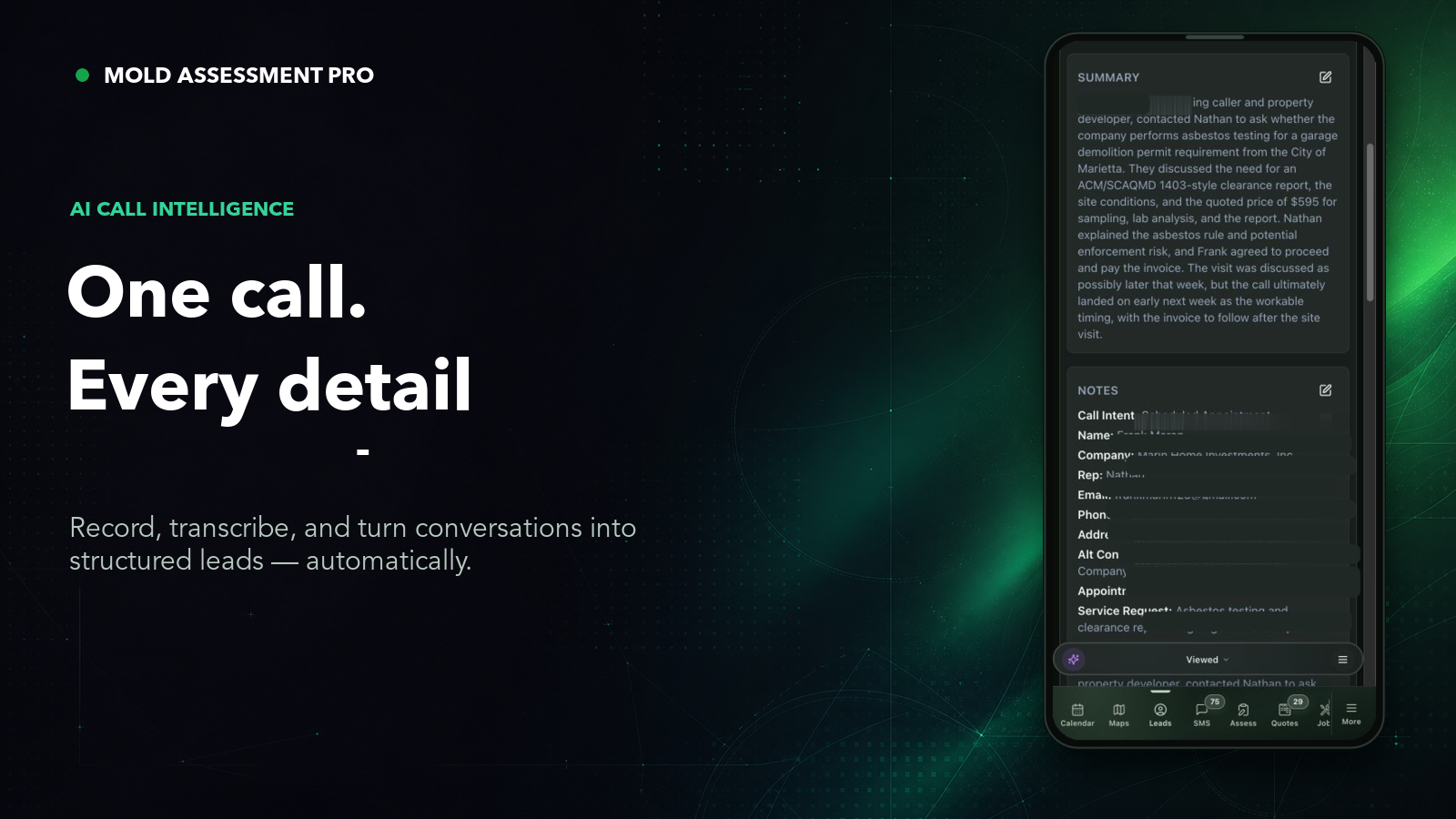
Call to structured lead
The conversation becomes a reviewable summary and structured client record without separating the phone system from the work that follows.
01 / Inbound routing
Use the number and campaign context to preserve attribution, then route the caller through the destinations and fallback behavior configured for that line.
Use the left and right arrow keys to change screenshots. On a touch screen, swipe horizontally. Activate a screenshot to open its expanded view.
Move from the tracking source into a current generic call record with campaign, price, appointment, summary, and property context.
1 / 1
Swipe to view
1 / 1
02 / Caller identification
Mold Inspector syncs an eligible, company-scoped phone directory onto the iPhone. Apple checks that local directory while the call rings, so the employee can see a concise lead label without adding CRM records to personal Contacts.
The user enables Mold Inspector once under Call Blocking & Identification. Directory updates then follow login, app activity, relevant lead changes, and periodic refreshes.
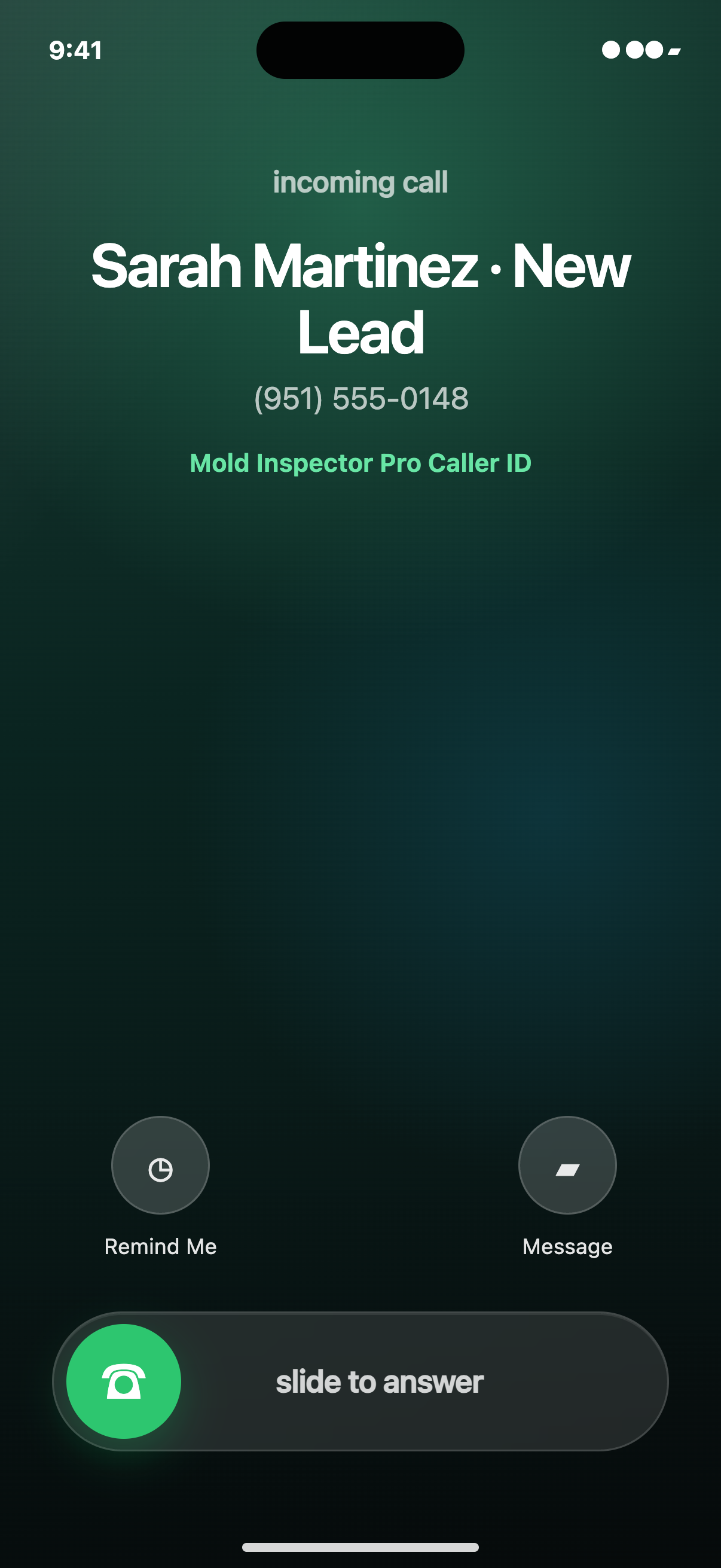
The system Phone screen remains Apple-controlled: it can show the number and concise synced label beside the normal locked-screen answer controls.
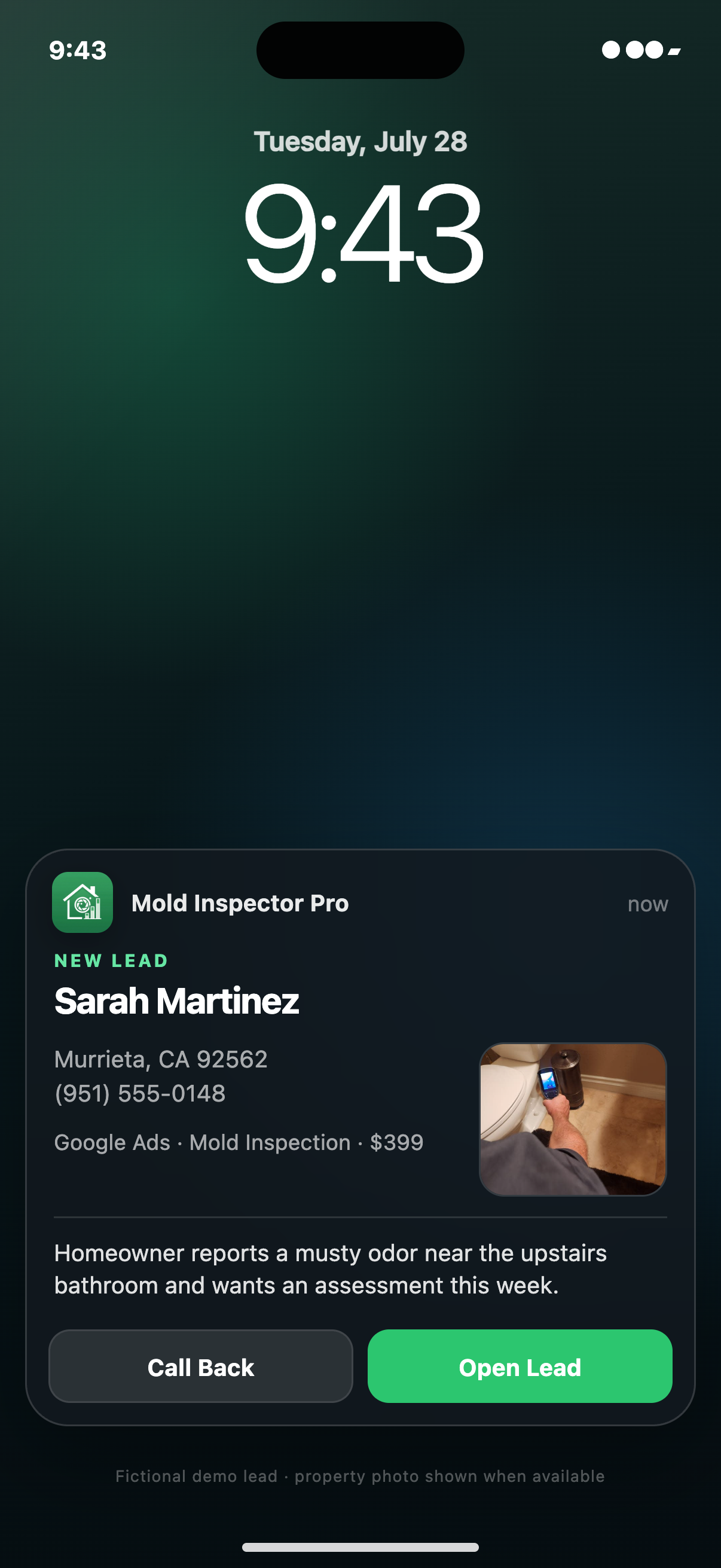
The expanded alert carries the property, source, summary, and CRM actions that do not belong inside Apple’s incoming-call screen.
Representative iPhone presentation; Apple controls the exact typography and placement of system call and notification surfaces.
03 / Call intelligence
When recording is enabled and permitted, the audio can be transcribed and summarized while structured details remain editable by the team.
Use the left and right arrow keys to change screenshots. On a touch screen, swipe horizontally. Activate a screenshot to open its expanded view.
Expand the current transcript to review exactly what the caller and representative said on the lead.
1 / 3
Scroll through the workflow
3 views
Mobile workflow
01 / 03
Mobile workflow
02 / 03
Mobile workflow
03 / 03
Tap any view to expand it, then use the controls or swipe between the full-screen screens.
Recording playback and the complete transcript
Name, address, service need, appointment, and discussed price
Re-summarize or edit the record before it drives the next action
04 / Outbound follow-up
Start a tracked follow-up from the client, choose the tracking number the customer sees, and preserve the same recording and transcript workflow used for inbound calls.
Start from the client or lead instead of copying the number into a personal dialer.
Select the tracking number the client should see as caller ID.
The tracked call can ring the team member first, optionally require a keypress, then connect the client.
Tracked calls are recorded, transcribed, summarized, and added back to the CRM history.
Use the left and right arrow keys to change screenshots. On a touch screen, swipe horizontally. Activate a screenshot to open its expanded view.
The lead keeps the current summary and earlier call context ready for the quote, assessment, invoice, or SMS that follows.
1 / 1
Swipe to view
1 / 1
05 / Attached history
Keep the recording beside the quote, assessment, invoice, messages, and photos that followed. The next person opening the client record can see both what was said and what the business did next.
Tell us how you work today. We’ll walk through the calls, fieldwork, and reports that matter to your team.
0130-minute personalized walkthrough
02See pricing for your team size
03No obligations or pressure