Track Samples and Generate Documents
From scanned shipping labels to chain of custody forms and clearance certificates, Mold Inspector keeps sample logistics and client-ready documents tied to the job.
- Send COCs directly to the lab
- Buy and retain carrier labels
- Match returned results to samples
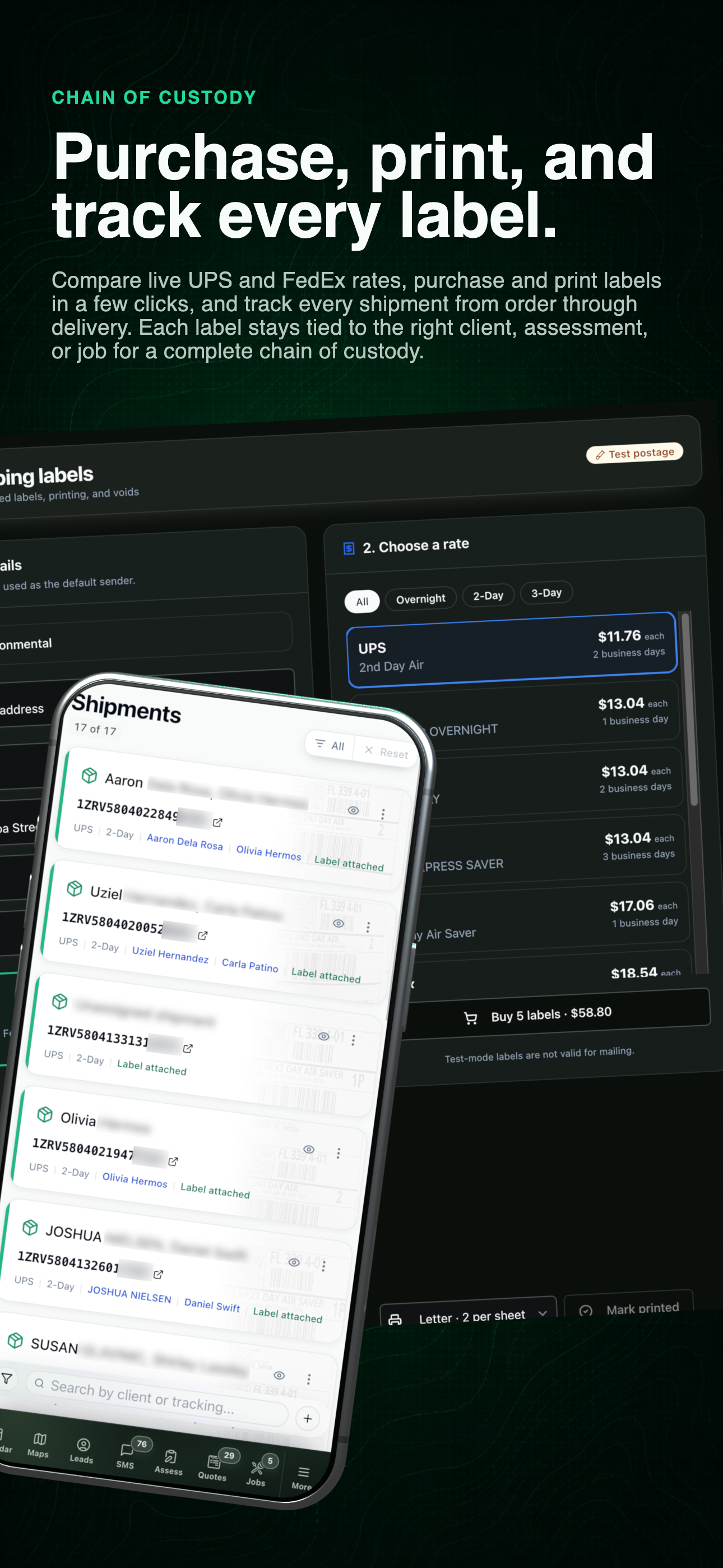
Shipping and sample handoff
See purchasing, printing, assessment association, and carrier tracking together before opening the detailed screens below.
01
Create COC
02
Buy label
03
Track handoff
04
Match lab return
01 / Lab-ready shipment
Build the laboratory handoff from the assessment.
Prepare the COC, select the destination, compare an envelope with a custom package, and create the carrier label without retyping the company sender or sample context.
Use the left and right arrow keys to change screenshots. On a touch screen, swipe horizontally. Activate a screenshot to open its expanded view.
Start with the company sender and build a complete lab destination from the current mobile workspace.
1 / 3
Scroll through the workflow
3 views
Mobile workflow
01 / 03
Mobile workflow
02 / 03
Mobile workflow
03 / 03
Tap any view to expand it, then use the controls or swipe between the full-screen screens.
02 / Shipment history
The label stays connected after the package leaves.
Search current shipments, open the retained label, confirm service and ship date, and see which assessments travel with the package. These current-UI captures use complete generic demo records so the workflow remains fully readable.
- Carrier and service level
- Label image and shipment notes
- Assessment and sample association
- Searchable shipment history
Use the left and right arrow keys to change screenshots. On a touch screen, swipe horizontally. Activate a screenshot to open its expanded view.
Generic demo shipments keep carrier, service, assessment association, label state, and view activity readable in one list.
1 / 2
Scroll through the workflow
2 views
Mobile workflow
01 / 02
Mobile workflow
02 / 02
Tap any view to expand it, then use the controls or swipe between the full-screen screens.
Use the left and right arrow keys to change screenshots. On a touch screen, swipe horizontally. Activate a screenshot to open its expanded view.
When the lab return arrives, the assessment shows the matched samples, COC, generated report content, and finished client report together.
1 / 1
Scroll through the workflow
1 views
Mobile workflow
01 / 01
Tap any view to expand it, then use the controls or swipe between the full-screen screens.
03 / Return and reconciliation
Close the loop when the laboratory sends results back.
The returned report is matched to the assessment and its sample IDs. The inspector can resolve exceptions, review the imported counts, generate report content, and deliver the client report from the same record.
Let’s walk through a job.
Tell us how you work today. We’ll walk through the calls, fieldwork, and reports that matter to your team.
0130-minute personalized walkthrough
02See pricing for your team size
03No obligations or pressure