Estimated
Quotes and invoices
Start with the costs and revenue already entered in operations, even before bank data is connected.
Bring bank activity, job income, and expenses into one workspace. Review your categories, check deposits, and see the profit left at the end of the month.
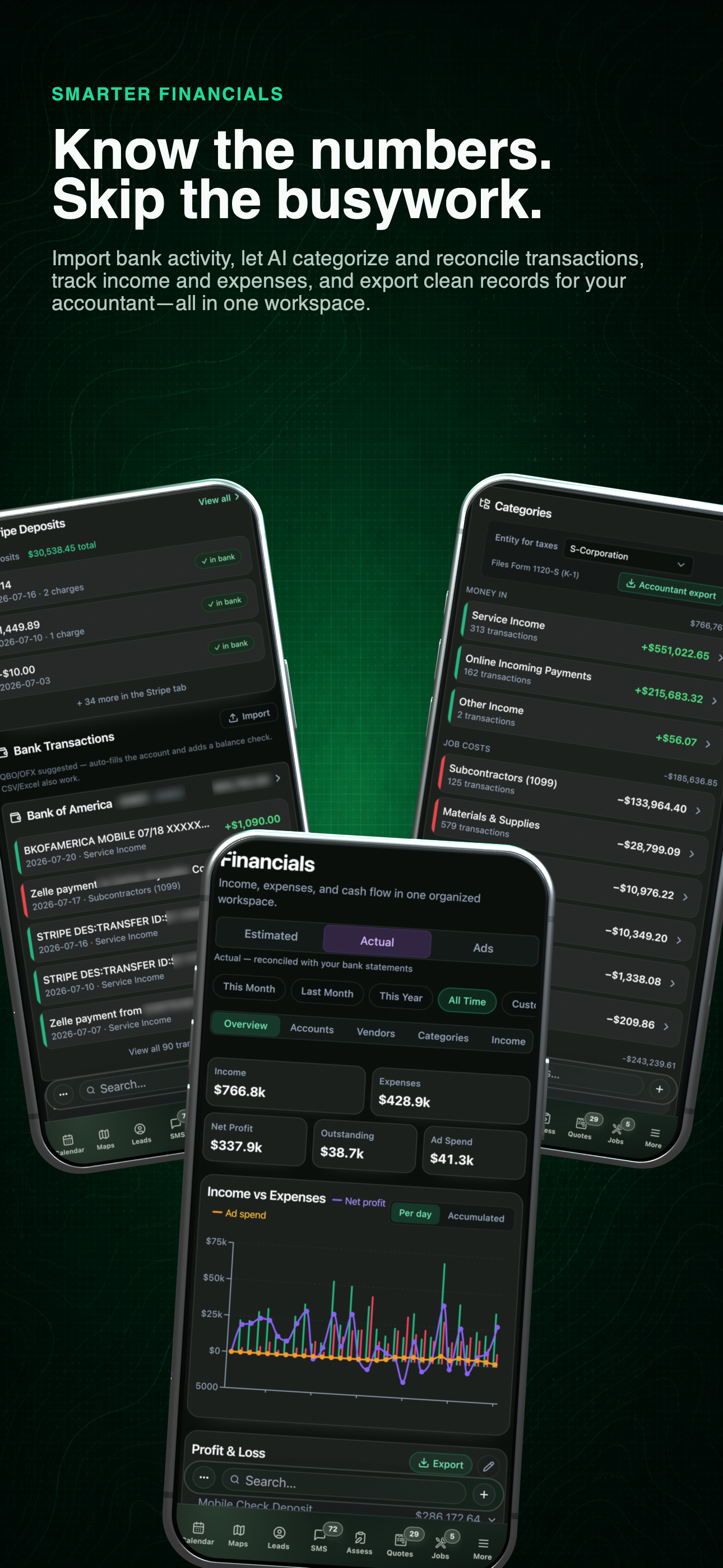
Complete financial workflow
See the path from imported activity and Stripe deposits to categorized books, profit and loss, and accountant-ready output.
The numbers behind the work
Put income beside expenses and follow profit over time. Switch between day-to-day activity and accumulated totals, then open the categories behind the numbers.
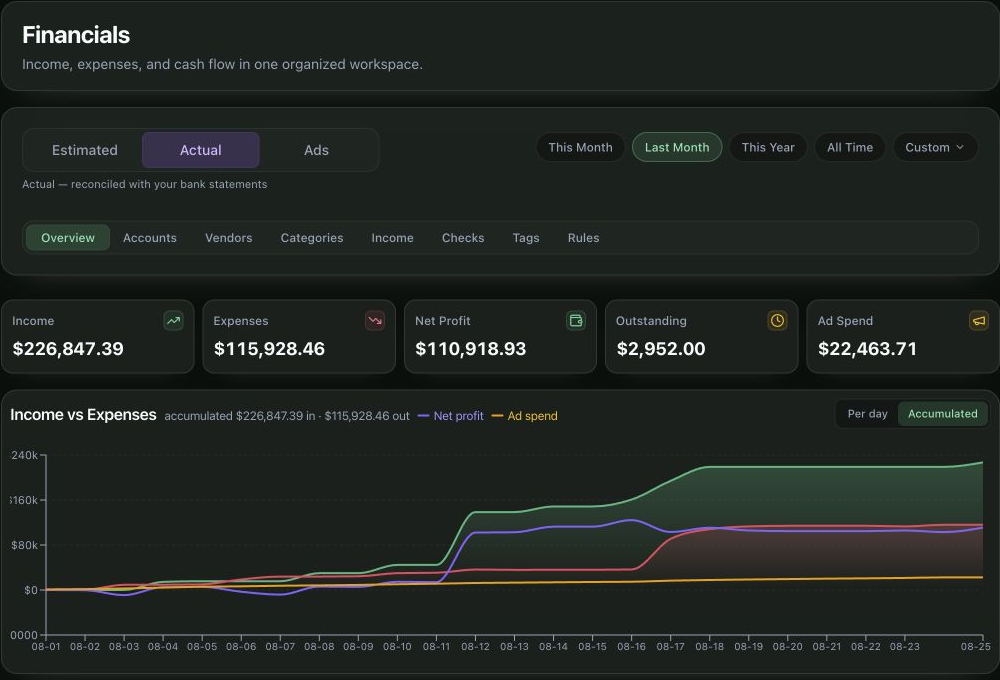
Acme demo · August 2026
The actual Financials screen, with sample transactions from the Acme demo account.
From operating work to reviewable books
Follow the numbers from their source through classification, reconciliation, profit and loss, and accountant output.
5 connected stages
01 / Choose the lens
Use Estimated for the work already quoted and invoiced, Actual for categorized bank activity, and Ads for campaign performance. Select a period to focus each view on the work you want to review.
Quotes and invoices
Start with the costs and revenue already entered in operations, even before bank data is connected.
Bank statements and receipts
Replace assumptions with categorized activity and bank-reconciled income, expenses, and profit.
Connected Google Ads and LSA
Review campaign spend and response in its own operating view instead of mixing advertising metrics into the books.
Use the left and right arrow keys to change screenshots. On a touch screen, swipe horizontally. Activate a screenshot to open its expanded view.
Keep the selected lens, date range, operating totals, and period trend readable on the phone used to run the business.
1 / 1
Swipe to view
1 / 1
Use the left and right arrow keys to change screenshots. On a touch screen, swipe horizontally. Activate a screenshot to open its expanded view.
Move from the period result into payment income, expenses, Stripe deposits, and bank statement import without leaving the current workspace.
1 / 1
Swipe to view
1 / 1
02 / Bring in source activity
Financial activity arrives with enough context to review: the account, posted date, amount, imported description, category, and match state remain together. Stripe deposits can be checked against bank activity instead of being counted as disconnected revenue.
QBO or OFX can identify the account and add a balance check. CSV and Excel statements are also supported.
Compare bank activity with recorded Stripe deposits, invoice payments, checks, and other known sources.
A matched line is not treated as human-reviewed until someone confirms the reconciliation.
03 / Classify and verify
AI-assisted categorization opens as an editable preview. Review the suggested category and vendor, adjust a group or a single line, then apply only the treatment you want in the ledger.
01
Generate editable category and vendor suggestions for the selected transactions before anything is applied.
02
Accept the accounting category after reviewing the source line, vendor, and suggested treatment.
03
Sign off on a real auto-match and move it from matched to reconciled.
04
Deliberately remove activity that should not be included in the reconciliation queue.
Open the category behind a total.
Money In, Job Costs, Overhead, equity, and other account classes remain grouped while each total still opens to its underlying transactions and vendors.
04 / Profit & loss
Read income, expenses, net profit, outstanding revenue, and the period trend—then continue into the sources, categories, vendors, and transaction detail behind the summary.
Follow service income and incoming payments into the transactions behind each total.
Separate job costs, operating overhead, vendors, and uncategorized activity.
Preview the current range, open a PDF, or download a bundle with ledger detail.
The accountant package includes the selected range's profit and loss, account balances, owner equity, and transaction detail. Tax entity selection shapes the export; it does not replace review by the business or its accountant.
05 / Advertising and calls
When Google Ads is connected, Ads becomes its own top-level lens for spend, clicks, impressions, campaigns, and Local Services Ads calls. The ad-platform total is shown for context. Categorized bank expenses, including advertising charges, determine the P&L.
Use the left and right arrow keys to change screenshots. On a touch screen, swipe horizontally. Activate a screenshot to open its expanded view.
Read the period summary, channel mix, and individual campaign results in the same view.
1 / 3
Swipe to view
1 / 3
Use the left and right arrow keys to change screenshots. On a touch screen, swipe horizontally. Activate a screenshot to open its expanded view.
Keep the essential campaign totals and channel trend available away from the desk.
1 / 2
Scroll through the workflow
2 views
Mobile workflow
01 / 02
Mobile workflow
02 / 02
Tap any view to expand it, then use the controls or swipe between the full-screen screens.
Tell us how you work today. We’ll walk through the calls, fieldwork, and reports that matter to your team.
0130-minute personalized walkthrough
02See pricing for your team size
03No obligations or pressure